# Adding Users

**CLICK** the **+ Add New User** button to begin the "create new user flow".

<figure><img src="https://540871446-files.gitbook.io/~/files/v0/b/gitbook-x-prod.appspot.com/o/spaces%2FVJV84grXWXSLppsAzVKx%2Fuploads%2FqHDlAZdfpjNZNXN3Mshi%2Fimage.png?alt=media&#x26;token=e98169db-333c-4218-a56e-842d5a7904ec" alt=""><figcaption></figcaption></figure>

The admin can create three user types:

1. [Company member](#company-member)
2. [Individual](#individual-member)
3. [Partner](#partner)

### Company Member

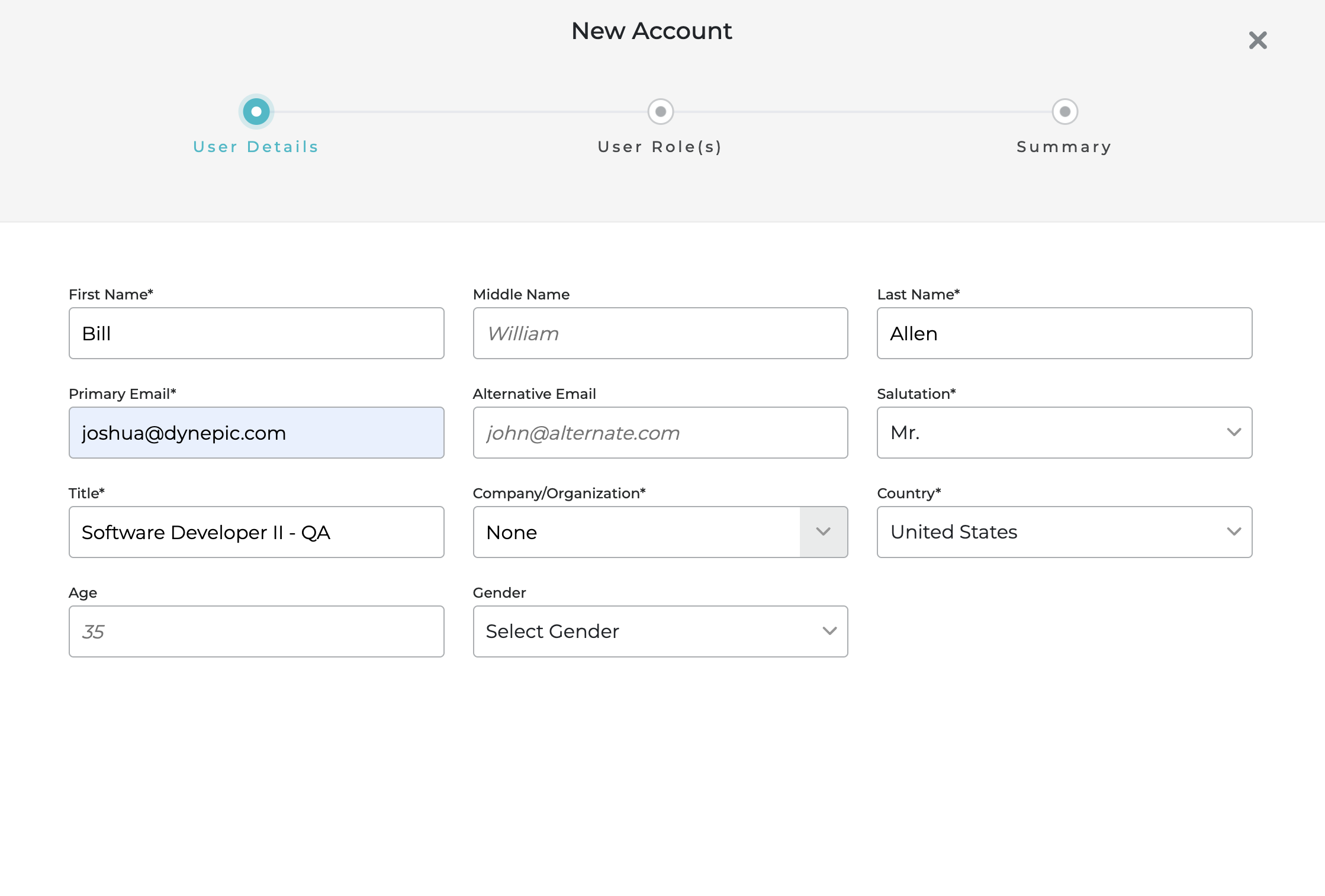
A "company member" is a user created and added to an existing studio group on the platform. The admin user will launch the "create new user flow" and designate a Company/Organization under the User Details tab.

<figure><img src="https://540871446-files.gitbook.io/~/files/v0/b/gitbook-x-prod.appspot.com/o/spaces%2FVJV84grXWXSLppsAzVKx%2Fuploads%2FhjOqWRbA4hwJRGumbMFz%2Fimage.png?alt=media&#x26;token=22254837-418e-4d4a-ae98-e2fbfdb78711" alt=""><figcaption></figcaption></figure>

Next select the users role. Each platform user will receive the standard permission by default. Make a role selection and click next.<br>

<figure><img src="https://540871446-files.gitbook.io/~/files/v0/b/gitbook-x-prod.appspot.com/o/spaces%2FVJV84grXWXSLppsAzVKx%2Fuploads%2FkI3h7tkcTwmDkEIe5XAo%2FScreenshot%202025-02-21%20at%2010.04.32%E2%80%AFPM.png?alt=media&#x26;token=0028b200-48fd-4b57-afbe-600fcd8ea01d" alt=""><figcaption></figcaption></figure>

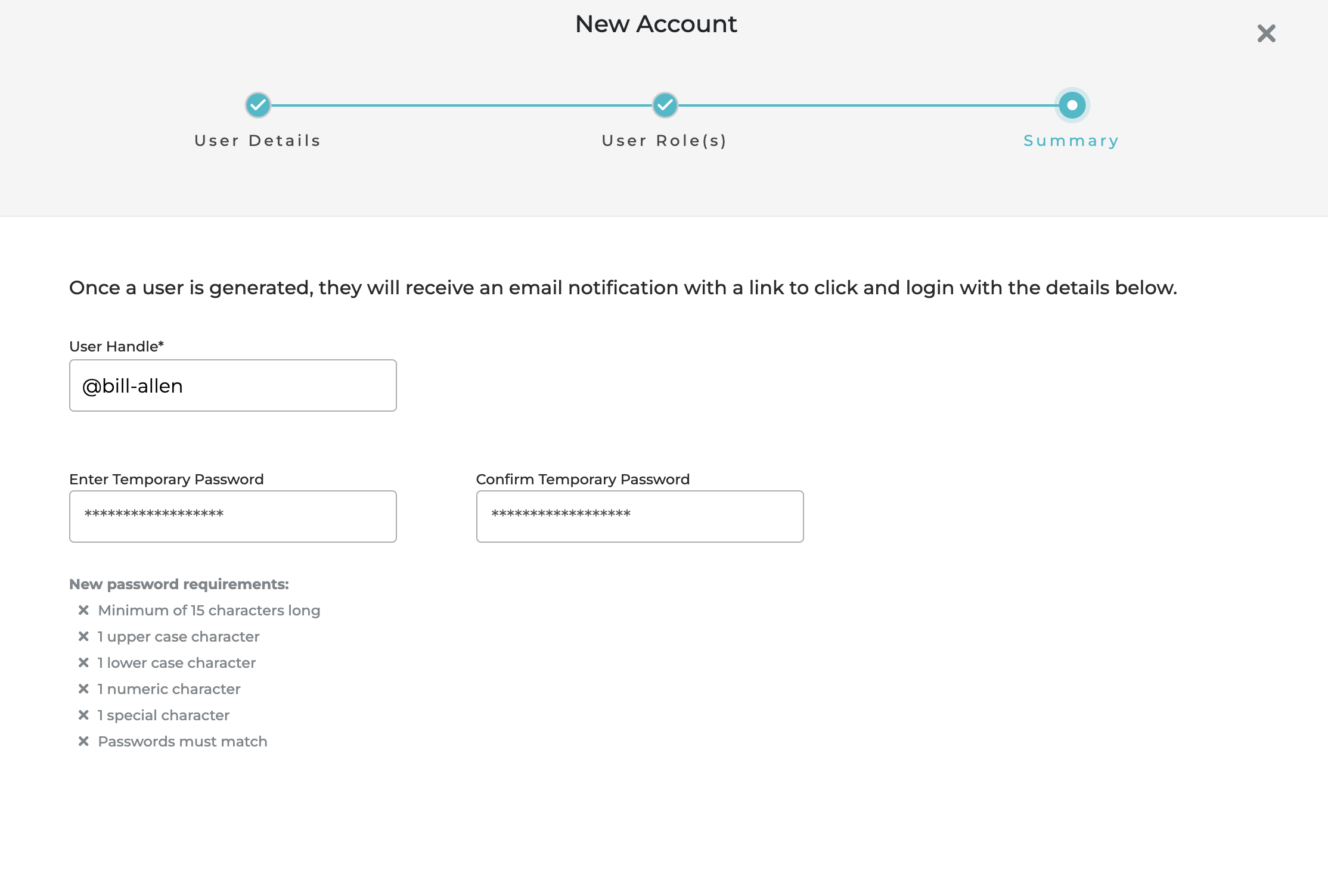
Set the accounts temporary password within the summary view. After meeting the requirements **CLICK** create.<br>

<figure><img src="https://540871446-files.gitbook.io/~/files/v0/b/gitbook-x-prod.appspot.com/o/spaces%2FVJV84grXWXSLppsAzVKx%2Fuploads%2FbH29LykquVhYXs4j5zYD%2FScreenshot%202025-02-21%20at%2010.10.32%E2%80%AFPM.png?alt=media&#x26;token=a7d8babb-2742-452c-9334-b93ab6a77de6" alt=""><figcaption></figcaption></figure>

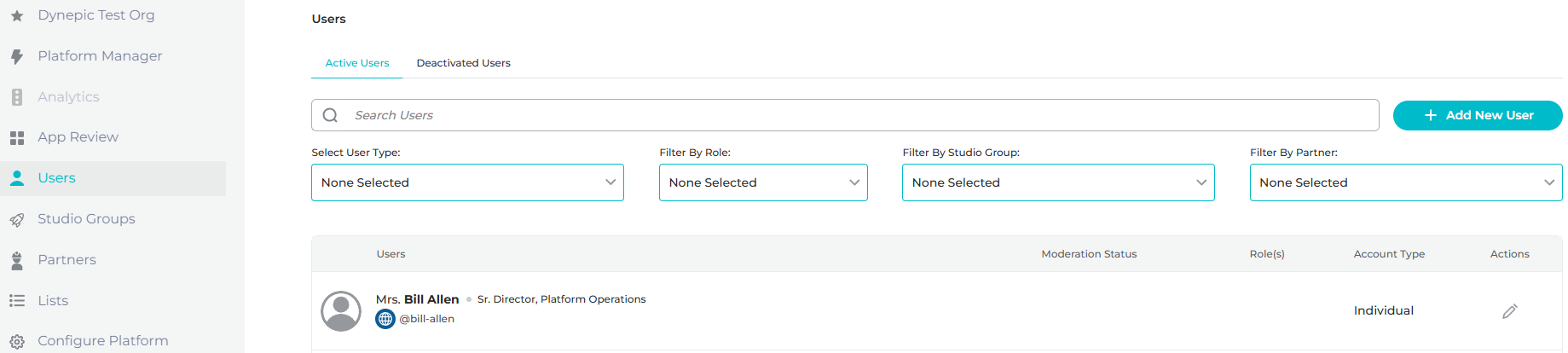
The user created is now visible on the active users tab.

<figure><img src="https://540871446-files.gitbook.io/~/files/v0/b/gitbook-x-prod.appspot.com/o/spaces%2FVJV84grXWXSLppsAzVKx%2Fuploads%2FzYwEaDAnCkusWnlfGGaz%2Fimage.png?alt=media&#x26;token=36497ab1-8757-4baf-bd09-05f0c943dbc9" alt=""><figcaption></figcaption></figure>

### Individual

An "Individual" is a user created and added to an existing studio group on the platform. The admin user will launch the "create new user flow" and **SELECT** none under Company/Organization\*.

<figure><img src="https://540871446-files.gitbook.io/~/files/v0/b/gitbook-x-prod.appspot.com/o/spaces%2FVJV84grXWXSLppsAzVKx%2Fuploads%2FKKqDMlP0UTy1DqbP45yK%2FScreenshot%202025-02-21%20at%2011.27.59%E2%80%AFPM.png?alt=media&#x26;token=9c68a298-f555-424e-b6c0-305cc7c1964a" alt=""><figcaption></figcaption></figure>

Next select the users role. Each platform user will receive the standard permission by default. Make a role selection and click next.<br>

<figure><img src="https://540871446-files.gitbook.io/~/files/v0/b/gitbook-x-prod.appspot.com/o/spaces%2FVJV84grXWXSLppsAzVKx%2Fuploads%2FkI3h7tkcTwmDkEIe5XAo%2FScreenshot%202025-02-21%20at%2010.04.32%E2%80%AFPM.png?alt=media&#x26;token=0028b200-48fd-4b57-afbe-600fcd8ea01d" alt=""><figcaption></figcaption></figure>

Set the accounts temporary password within the summary view. After meeting the requirements **CLICK** create.<br>

<figure><img src="https://540871446-files.gitbook.io/~/files/v0/b/gitbook-x-prod.appspot.com/o/spaces%2FVJV84grXWXSLppsAzVKx%2Fuploads%2FbH29LykquVhYXs4j5zYD%2FScreenshot%202025-02-21%20at%2010.10.32%E2%80%AFPM.png?alt=media&#x26;token=a7d8babb-2742-452c-9334-b93ab6a77de6" alt=""><figcaption></figcaption></figure>

The user created is now visible on the active users tab.

<figure><img src="https://540871446-files.gitbook.io/~/files/v0/b/gitbook-x-prod.appspot.com/o/spaces%2FVJV84grXWXSLppsAzVKx%2Fuploads%2FA4hIgT1WOyEDIu3itXYu%2Fimage.png?alt=media&#x26;token=9669255c-9923-4253-bd96-b104677ed543" alt=""><figcaption></figcaption></figure>

### Partner

A "partner" is a user created and added to an existing partner on the platform. The admin user will launch the "create new user flow" and designate the partner company on Company/Organization under the User Details tab.

<figure><img src="https://540871446-files.gitbook.io/~/files/v0/b/gitbook-x-prod.appspot.com/o/spaces%2FVJV84grXWXSLppsAzVKx%2Fuploads%2FgBWZUOuGaMeA2n0GKmtT%2FScreenshot%202025-02-24%20at%2012.33.05%E2%80%AFPM.png?alt=media&#x26;token=464e7224-56f6-4947-ba87-74c36a2f5244" alt=""><figcaption></figcaption></figure>

Next select the users role. Each platform user will receive the standard permission by default. Make a role selection and click next.<br>

<figure><img src="https://540871446-files.gitbook.io/~/files/v0/b/gitbook-x-prod.appspot.com/o/spaces%2FVJV84grXWXSLppsAzVKx%2Fuploads%2FkI3h7tkcTwmDkEIe5XAo%2FScreenshot%202025-02-21%20at%2010.04.32%E2%80%AFPM.png?alt=media&#x26;token=0028b200-48fd-4b57-afbe-600fcd8ea01d" alt=""><figcaption></figcaption></figure>

Set the accounts temporary password within the summary view. After meeting the requirements **CLICK** create.<br>

<figure><img src="https://540871446-files.gitbook.io/~/files/v0/b/gitbook-x-prod.appspot.com/o/spaces%2FVJV84grXWXSLppsAzVKx%2Fuploads%2FbH29LykquVhYXs4j5zYD%2FScreenshot%202025-02-21%20at%2010.10.32%E2%80%AFPM.png?alt=media&#x26;token=a7d8babb-2742-452c-9334-b93ab6a77de6" alt=""><figcaption></figcaption></figure>

The user created is now visible on the active users tab.

<figure><img src="https://540871446-files.gitbook.io/~/files/v0/b/gitbook-x-prod.appspot.com/o/spaces%2FVJV84grXWXSLppsAzVKx%2Fuploads%2Fhx5zogHFW1aCwF3djLqB%2Fimage.png?alt=media&#x26;token=dfa4a1af-cee5-4b9e-aeb1-428c1c831584" alt=""><figcaption></figcaption></figure>