> For the complete documentation index, see [llms.txt](https://docs.motar.com/llms.txt). Markdown versions of documentation pages are available by appending `.md` to page URLs; this page is available as [Markdown](https://docs.motar.com/motar-core-services/intro-to-core-services/admin/users/create-user.md).
# Create User
**Click** the "+ Add New User" button to begin the *create new user flow*.
### Creating Users for Commercial and Government
{% hint style="warning" %}
The flow for commercial and government user types is essentially the same. User details, role and summary. Government users have the additional sections for the agency and designation. Differences are shown below.
{% endhint %}
#### User details:
{% columns %}
{% column %}
**Commercial**
* First / Last Name
* User Handle
* Title
* Primary Email
* User Type
* Owning Company Member
* Managing Company Member
* Partner Company Member
* None (Individual)
* Country
{% endcolumn %}
{% column %}
**Government**
* First / Last Name
* User Handle
* Title
* Primary Email
* Military Grade
* Rank / Rank Abreviation
* Legal User Type
* US Government
* US Government Contractor
* Foreign Government
* Public
* Country
{% endcolumn %}
{% endcolumns %}
\
**Commercial** user details section of the add a new user flow:
G**overnment** user details section of the add a new user flow:
Fill out the required fields and **click "**Next" to move to the users role section. Each platform user will receive the standard permission by default. Make a role selection and click next. Note that some user types are only allowed certain roles [(see role(s))](https://app.gitbook.com/o/-LVczVIRnIFIRo5llDYg/s/VJV84grXWXSLppsAzVKx/~/edit/~/changes/480/motar-core-services/intro-to-core-services/admin/users#role-s)
**Commercial and Government** role section of the add new user flow:
For Government Users Only - Agency and Designation Details
**Select** which Government Agency this account is associated with and **click** "Next".
Government Agency
**Enter** the details regarding the users government designation and **click** "Summary".
Designation Detail
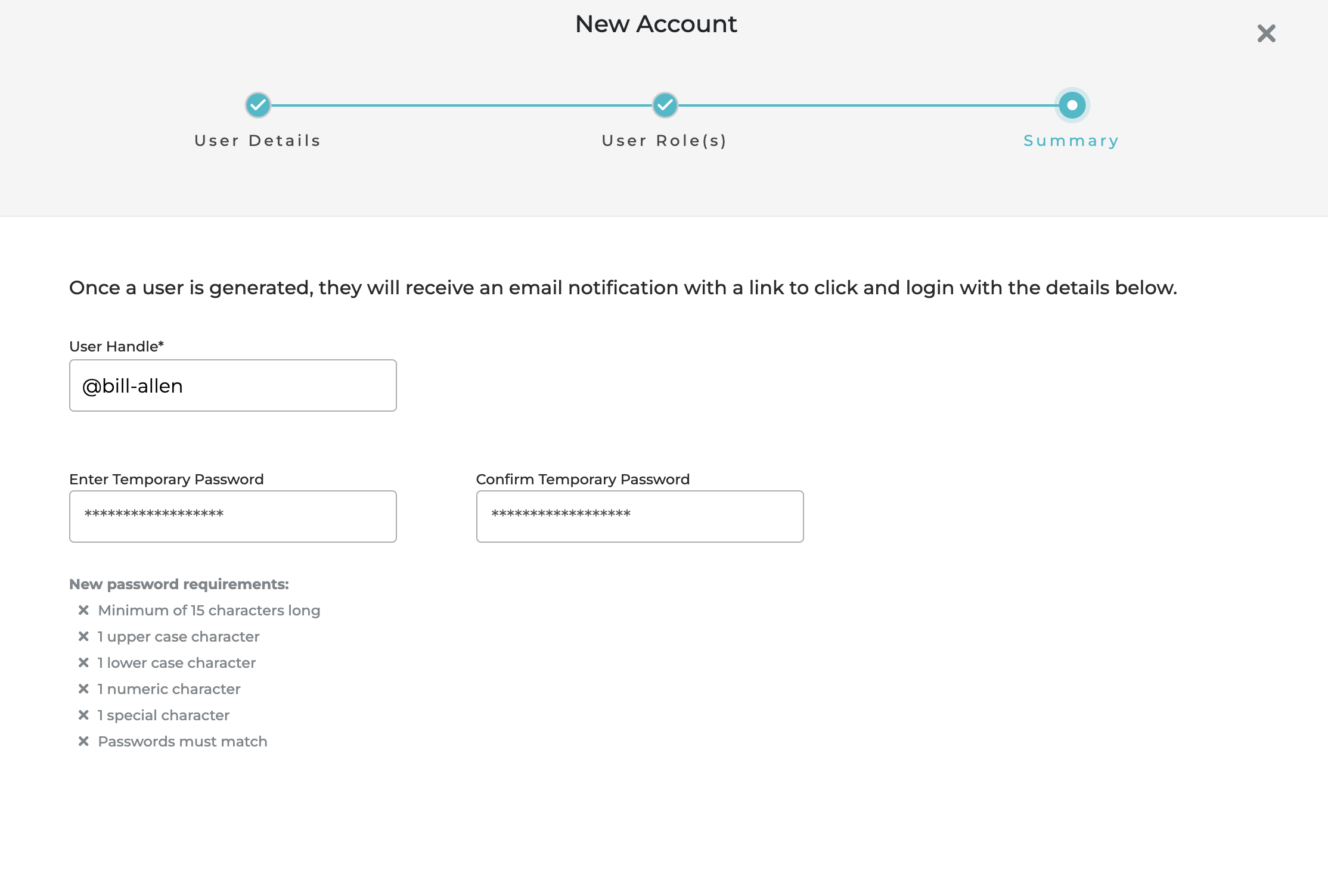
Once the role is set **click** "Next" to set the accounts temporary password within the summary view. After meeting the requirements **click "**Summary".
**Commercial and Government** summary section of the add new user flow:
{% hint style="warning" %}
User handle should be unique and can only contain lower characters, numbers and dashes. It should not No contain empty spaces.
{% endhint %}
**Click** "Create" user and you will now see that user on the active users tab.
Repeat the process for any additional users.