# Configure the MOTAR SDK

In order to allow your application to sync with MOTAR you will need to add a Configuration file.&#x20;

### Get the Client ID and Secret from Studio

* Log into Studio
* Locate the app listing you created earlier in the Tutorial "Learn to Fly UFO"
* Click **Settings**
* Keep this page open and return to Unity.

<figure><img src="https://540871446-files.gitbook.io/~/files/v0/b/gitbook-x-prod.appspot.com/o/spaces%2FVJV84grXWXSLppsAzVKx%2Fuploads%2FeQ8uqXQZs06qCidClHTm%2Fimage.png?alt=media&#x26;token=c05b07c8-6b3e-4259-a37a-8fd1bb25ca6f" alt=""><figcaption></figcaption></figure>

### Create / Modify the Configuration File

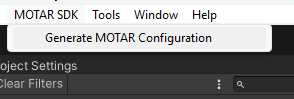
* In your Unity project, **Click** MOTAR SDK&#x20;

  <figure><img src="https://540871446-files.gitbook.io/~/files/v0/b/gitbook-x-prod.appspot.com/o/spaces%2FVJV84grXWXSLppsAzVKx%2Fuploads%2FnM2y8UpIQp4rvl3xxzfv%2Fimage.png?alt=media&#x26;token=9ab6d131-8f6c-4279-b991-0eb07ba519be" alt=""><figcaption></figcaption></figure>
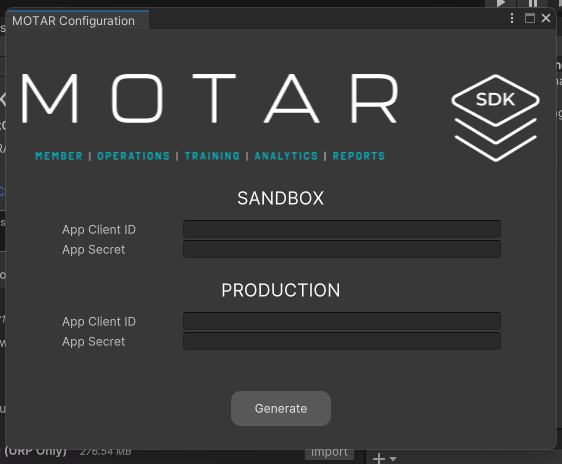
* A new MOTAR Configuration window will open.&#x20;

*If an app has already been linked, the window will show you the current ID/Secret for your app.*&#x20;

{% hint style="danger" %}
Modifying the configuration file may disconnect your app from the app listing! Ensure you have the correct ID and Secret for your application.
{% endhint %}

* Copy and Paste your Client ID and Secret from Studio, into the fields:<br>

  <figure><img src="https://540871446-files.gitbook.io/~/files/v0/b/gitbook-x-prod.appspot.com/o/spaces%2FVJV84grXWXSLppsAzVKx%2Fuploads%2FhxWTNyQGRkznbTKfqhuI%2Fimage.png?alt=media&#x26;token=c48e0a70-f213-4580-9bfe-b1511773b938" alt="" width="281"><figcaption></figcaption></figure>
* Click **Generate**
* Once added, a file will be generated and is located in the Assets\MOTAR directory

<figure><img src="https://540871446-files.gitbook.io/~/files/v0/b/gitbook-x-prod.appspot.com/o/spaces%2FVJV84grXWXSLppsAzVKx%2Fuploads%2FHBt189yI8hvjGCoWXOhf%2Fimage.png?alt=media&#x26;token=edc2e4f8-5980-44b0-a4f8-0a965428ddf4" alt=""><figcaption></figcaption></figure>

{% hint style="success" %}
You application has now been connected and is ready to test and build!&#x20;
{% endhint %}