# Set Up the Scenes

Setting Up the Scenes

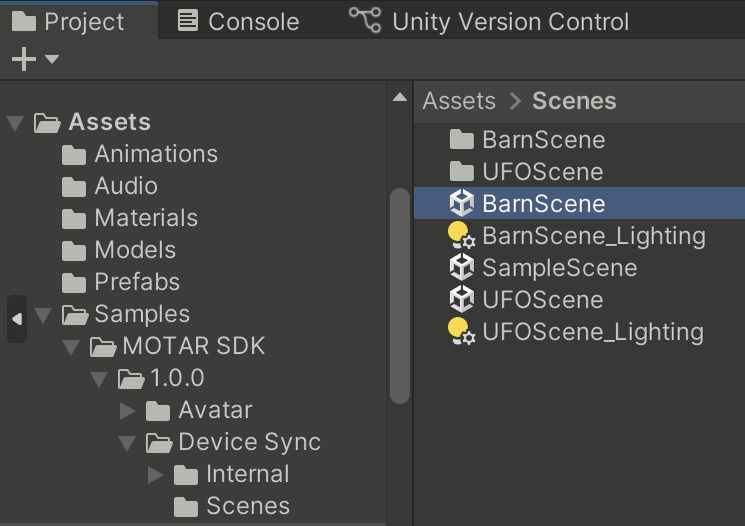
1. Navigate to `Assets -> Samples -> MOTAR SDK -> 1.0.0 -> Learn to Fly UFO (URP Only) -> Scenes`.
2. Open **BarnScene**.

<figure><img src="https://540871446-files.gitbook.io/~/files/v0/b/gitbook-x-prod.appspot.com/o/spaces%2FVJV84grXWXSLppsAzVKx%2Fuploads%2Fp5q09o6XBftnB9om6t77%2Fimage.png?alt=media&#x26;token=310f2866-f383-45dd-ae78-e445f25e6640" alt="" width="373"><figcaption></figcaption></figure>

#### Adding the Player

* Navigate to `Assets -> Samples -> MOTAR SDK -> 1.0.0 -> Avatar -> Resources`.

<figure><img src="https://540871446-files.gitbook.io/~/files/v0/b/gitbook-x-prod.appspot.com/o/spaces%2FVJV84grXWXSLppsAzVKx%2Fuploads%2FLSoRsfqjx42D2FzFbbcA%2Fimage.png?alt=media&#x26;token=43be8aa7-1664-4111-be52-d7d89812716b" alt="" width="375"><figcaption></figcaption></figure>

* Drag **MOTAR\_Player** prefab into the **Hierarchy** window.

<figure><img src="https://540871446-files.gitbook.io/~/files/v0/b/gitbook-x-prod.appspot.com/o/spaces%2FVJV84grXWXSLppsAzVKx%2Fuploads%2FH2cJ3Mpzn7YMub4QU9ig%2Fimage.png?alt=media&#x26;token=8631a15f-b4d6-466b-b17e-afa62dbf6040" alt="" width="323"><figcaption></figcaption></figure>

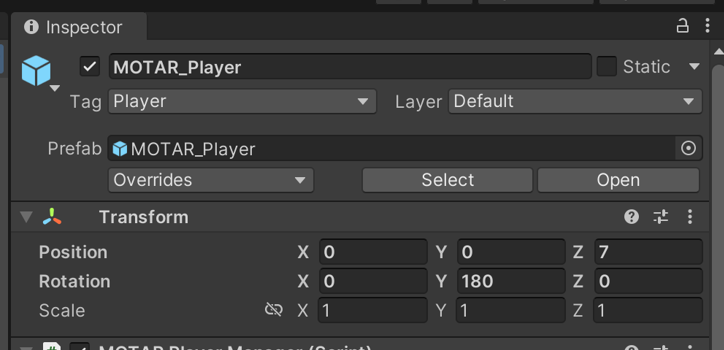
* Set its **Position** to `(0, 0, 7)` and **Rotation** to `(0, 180, 0)`.

<figure><img src="https://540871446-files.gitbook.io/~/files/v0/b/gitbook-x-prod.appspot.com/o/spaces%2FVJV84grXWXSLppsAzVKx%2Fuploads%2FVYX6SKVSlMdUv9KkteWq%2Fimage.png?alt=media&#x26;token=e6d92b3f-2827-4a86-9a15-a0fef9b6cd4b" alt="" width="362"><figcaption></figcaption></figure>

#### Changing Movement Controls

* Locate the **Left Controller** inside **MOTAR\_Player** (`MOTAR_Player -> Camera Offset`).&#x20;

<figure><img src="https://540871446-files.gitbook.io/~/files/v0/b/gitbook-x-prod.appspot.com/o/spaces%2FVJV84grXWXSLppsAzVKx%2Fuploads%2FchAsQRWWpE6RXQAijnrb%2Fimage.png?alt=media&#x26;token=bc5c54d8-861d-4714-90af-24fc221c763a" alt="" width="336"><figcaption></figcaption></figure>

* Find the component **MOTAR Controller Manager**. In the **Inspector** window
* Uncheck **Smooth Motion** to enable teleport movement.

<figure><img src="https://540871446-files.gitbook.io/~/files/v0/b/gitbook-x-prod.appspot.com/o/spaces%2FVJV84grXWXSLppsAzVKx%2Fuploads%2FJIPEAuEyE7BlWIdEvUeO%2Fimage.png?alt=media&#x26;token=077ad301-8ac9-4ded-ab02-4bafe6319509" alt="" width="375"><figcaption></figcaption></figure>

#### Linking Player to UFO Animation

* In **Hierarchy**, find **UFO\_1** inside **UFO\_Assets**.

<figure><img src="https://540871446-files.gitbook.io/~/files/v0/b/gitbook-x-prod.appspot.com/o/spaces%2FVJV84grXWXSLppsAzVKx%2Fuploads%2FFEWGjNidTyoKzzeK68xj%2Fimage.png?alt=media&#x26;token=cc587510-ec55-44a8-8021-724ab6d018f7" alt="" width="375"><figcaption></figcaption></figure>

* Locate the **UFO Event Manager** component in the **Inspector** window

<figure><img src="https://540871446-files.gitbook.io/~/files/v0/b/gitbook-x-prod.appspot.com/o/spaces%2FVJV84grXWXSLppsAzVKx%2Fuploads%2F2S4EtkGqQDo7pkEFLYeG%2Fimage.png?alt=media&#x26;token=986e2a40-a015-439f-8cfa-05d76dc5178c" alt="" width="336"><figcaption></figcaption></figure>

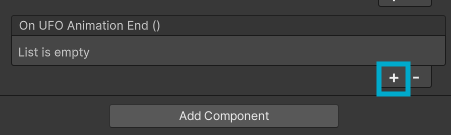
* Click **+** under **On UFO Animation End ()**.

<figure><img src="https://540871446-files.gitbook.io/~/files/v0/b/gitbook-x-prod.appspot.com/o/spaces%2FVJV84grXWXSLppsAzVKx%2Fuploads%2Fdw1I0zB9juQlu6Pw45fa%2Fimage.png?alt=media&#x26;token=9d055399-bb7d-4f43-97bb-a1cfbd7b2f5d" alt="" width="338"><figcaption></figcaption></figure>

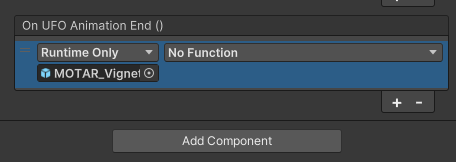
* Drag **MOTAR\_Vignette\_1** from **MOTAR\_Player -> Camera Offset -> Main Camera** into the new event.

<figure><img src="https://540871446-files.gitbook.io/~/files/v0/b/gitbook-x-prod.appspot.com/o/spaces%2FVJV84grXWXSLppsAzVKx%2Fuploads%2FmXlccu0mh568FXoK2U0q%2Fimage.png?alt=media&#x26;token=dd1e80a7-a664-4969-8c2c-5e375e5a5496" alt="" width="360"><figcaption><p>The Player prefab</p></figcaption></figure>

<figure><img src="https://540871446-files.gitbook.io/~/files/v0/b/gitbook-x-prod.appspot.com/o/spaces%2FVJV84grXWXSLppsAzVKx%2Fuploads%2FWC04ptj8ksxzhNxf5oMb%2Fimage.png?alt=media&#x26;token=39dd05f0-1515-45c6-94ec-29ba824d1b97" alt="" width="342"><figcaption><p>Prefab added to the  UFO Animation End ()</p></figcaption></figure>

* From the "No Function" dropdown, select **MOTARVignette -> FadeOut()**.

<figure><img src="https://540871446-files.gitbook.io/~/files/v0/b/gitbook-x-prod.appspot.com/o/spaces%2FVJV84grXWXSLppsAzVKx%2Fuploads%2FFcffJiCmhRrviku6ySFM%2Fimage.png?alt=media&#x26;token=48891c59-daff-499b-8ee3-b4db7e27531a" alt="" width="390"><figcaption><p>Select the function through the popout menus</p></figcaption></figure>

<figure><img src="https://540871446-files.gitbook.io/~/files/v0/b/gitbook-x-prod.appspot.com/o/spaces%2FVJV84grXWXSLppsAzVKx%2Fuploads%2FExtGrlpx4U3jfOazVu2U%2Fimage.png?alt=media&#x26;token=2f3c0364-640e-4083-a303-559343969c1f" alt=""><figcaption><p>FadeOut function added to the UFO Animation End ()</p></figcaption></figure>

* Navigate to **MOTAR\_Vignette\_1,**&#x20;
  * Alternatively, click **Add Component**
  * Type **MOTARLoadScene**&#x20;
*

```
<figure><img src="https://540871446-files.gitbook.io/~/files/v0/b/gitbook-x-prod.appspot.com/o/spaces%2FVJV84grXWXSLppsAzVKx%2Fuploads%2FRnXKaQ4PSiHUaZkfzdN8%2Fimage.png?alt=media&#x26;token=bed9e0d4-ef6b-44f7-9dea-ef5853012505" alt=""><figcaption></figcaption></figure>
```

* Press **Enter** on your keyboard to add the script.
* Set **Scene Index** to **2** in **MOTARLoadScene**.

<figure><img src="https://540871446-files.gitbook.io/~/files/v0/b/gitbook-x-prod.appspot.com/o/spaces%2FVJV84grXWXSLppsAzVKx%2Fuploads%2F4jQ5fwvqdILhMeQVBegZ%2Fimage.png?alt=media&#x26;token=e73aa7bf-384b-4ca1-8a9f-68576a482096" alt=""><figcaption></figcaption></figure>

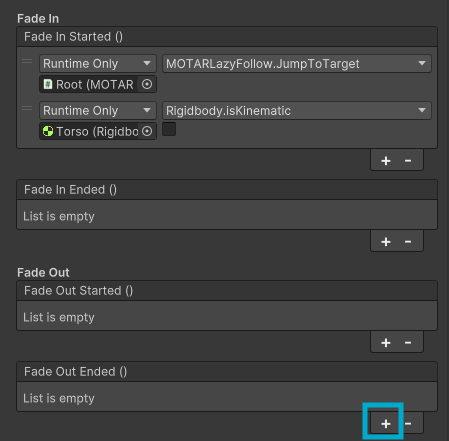
* Under **MOTAR Vignette**, click **+** under **Fade Out Ended ()**.

<figure><img src="https://540871446-files.gitbook.io/~/files/v0/b/gitbook-x-prod.appspot.com/o/spaces%2FVJV84grXWXSLppsAzVKx%2Fuploads%2F8UWKqjYj5LjULaRiSlvr%2Fimage.png?alt=media&#x26;token=db8f8270-63f4-4f00-ad68-2791973b5cb0" alt=""><figcaption></figcaption></figure>

* Drag **MOTAR\_Vignette\_1** into the event and select **MOTARLoadScene -> LoadScene()**.

<figure><img src="https://540871446-files.gitbook.io/~/files/v0/b/gitbook-x-prod.appspot.com/o/spaces%2FVJV84grXWXSLppsAzVKx%2Fuploads%2FIiJdh7v1PH4FCAjGyOLX%2Fimage.png?alt=media&#x26;token=1cf84cc8-0389-471b-af60-7c37c65b3be7" alt=""><figcaption></figcaption></figure>

* **Save** the scene.

#### Copying Player to the Final Scene

* In **BarnScene**, select **MOTAR\_Player** and copy it (`Edit -> Copy`).
* Open `Assets -> Samples -> MOTAR SDK -> 1.0.0 -> Learn to Fly UFO (URP Only) -> Scenes -> UFOScene`.
* Paste **MOTAR\_Player** into the **Hierarchy**.
* Set its **Position** to `(0, 0, 0)` and **Rotation** to `(0, 0, 0)`.

<figure><img src="https://540871446-files.gitbook.io/~/files/v0/b/gitbook-x-prod.appspot.com/o/spaces%2FVJV84grXWXSLppsAzVKx%2Fuploads%2FdKhyiiD50dmOKMNzJ3tL%2Fimage.png?alt=media&#x26;token=ed97d0cf-b086-4bbe-99b4-2f0fe1cd800e" alt=""><figcaption></figcaption></figure>

#### Fading Player in the Final Scene

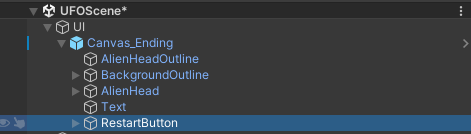
* In **Hierarchy**, find **RestartButton** inside **UI -> Canvas\_Ending**.

<figure><img src="https://540871446-files.gitbook.io/~/files/v0/b/gitbook-x-prod.appspot.com/o/spaces%2FVJV84grXWXSLppsAzVKx%2Fuploads%2FMiUEsu51yc3Yab0b9AsX%2Fimage.png?alt=media&#x26;token=ec2cb0c2-d9af-4393-87cb-ef5b532252f9" alt=""><figcaption></figcaption></figure>

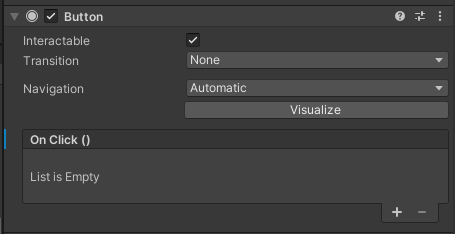
* Locate the **Button** component.

<figure><img src="https://540871446-files.gitbook.io/~/files/v0/b/gitbook-x-prod.appspot.com/o/spaces%2FVJV84grXWXSLppsAzVKx%2Fuploads%2FhryILg59yYdfgPKiO1of%2Fimage.png?alt=media&#x26;token=f09f6fbb-a960-45a8-860d-fbd938144a37" alt=""><figcaption></figcaption></figure>

* Click **+** under **On Click ()**.

<figure><img src="https://540871446-files.gitbook.io/~/files/v0/b/gitbook-x-prod.appspot.com/o/spaces%2FVJV84grXWXSLppsAzVKx%2Fuploads%2F2SzwoNduKdNuHd4KelGv%2Fimage.png?alt=media&#x26;token=3288c2dd-f897-4043-adbf-d53d8a58ef64" alt=""><figcaption></figcaption></figure>

* Drag **MOTAR\_Vignette\_1** from **MOTAR\_Player -> Camera Offset -> Main Camera** into the event.
* Select **MOTARVignette -> FadeOut()**.

<figure><img src="https://540871446-files.gitbook.io/~/files/v0/b/gitbook-x-prod.appspot.com/o/spaces%2FVJV84grXWXSLppsAzVKx%2Fuploads%2F9BdbvG4Ii44OEe4r3BVs%2Fimage.png?alt=media&#x26;token=473f93c1-55f6-47a9-9e0d-31ef8dbda326" alt=""><figcaption></figcaption></figure>

* Locate **MOTARLoadScene** in **MOTAR\_Vignette\_1**.
* Change **Scene Index** to **1**.

<figure><img src="https://540871446-files.gitbook.io/~/files/v0/b/gitbook-x-prod.appspot.com/o/spaces%2FVJV84grXWXSLppsAzVKx%2Fuploads%2FRmkZ27SWkxhCWJZjcdyi%2Fimage.png?alt=media&#x26;token=9399a6ff-0321-4c94-af87-9388fb2a362f" alt=""><figcaption></figcaption></figure>

* **Save** the scene.

***

###