> For the complete documentation index, see [llms.txt](https://docs.motar.com/llms.txt). Markdown versions of documentation pages are available by appending `.md` to page URLs; this page is available as [Markdown](https://docs.motar.com/welcome/motar-tutorials.md).
# MOTAR Tutorials
A step-by-step tutorial to get you familiar with your MOTAR instance by walking you through adding users, studio groups and assets.
***
{% hint style="warning" %}
### Warning: *You cannot login as multiple users in a single browser session.*
*If you would like to manage multiple users while testing MOTAR, you can open a new "incognito" tab and login as the second user or use a different browser for the second user.*
{% endhint %}
## 1 - Add Platform Owner and Platform Branding
{% stepper %}
{% step %}
**Click** the blue "Edit" button to add the **Owning company** details
**Cosmic Horizon** is the owning company name for this tutorial and most of this information will already be completed based on the license that you uploaded. The Company Image and Favicon for Cosmic Horizon can be found at:
**`MOTAR-Tutorial-Files/Platform-Branding/Company Icon/`**`Cosmic-Horizons-Company-Image-100x100.png`
Some information will be auto-populated from the License. **Your information may vary, depending on your license.**
\
Fill in any other missing information for the Platform Owner page and **click** "Save"
Platform Owner details page
{% endstep %}
{% step %}
**Click** on the Platform Branding tab and **click** the blue "Edit" button.
For this tutorial, fill out the fields using the following:
{% hint style="info" %}
If you are not conducting a trial of MOTAR, and are setting up a MOTAR Instance for your own use, you will input your company's information and upload your company's branding.
{% endhint %}
Platform Branding Details
*If you are setting up a MOTAR Instance for your organization, you may input the information for those specific Partners.*
{% endstep %}
{% endstepper %}
***
## 2 - Create Partners/Contractors - Studio Groups - and Users
{% stepper %}
{% step %}
### Create Partners/Contractors
> A partner/contractor is an external organization that is allowed on your platform, they can **only** access content that has been shared with them
* Navigate to the Partners or Contractors tab located on the left navigation menu
* Click "+ Partner/Contractor"
"+ Partner" button location
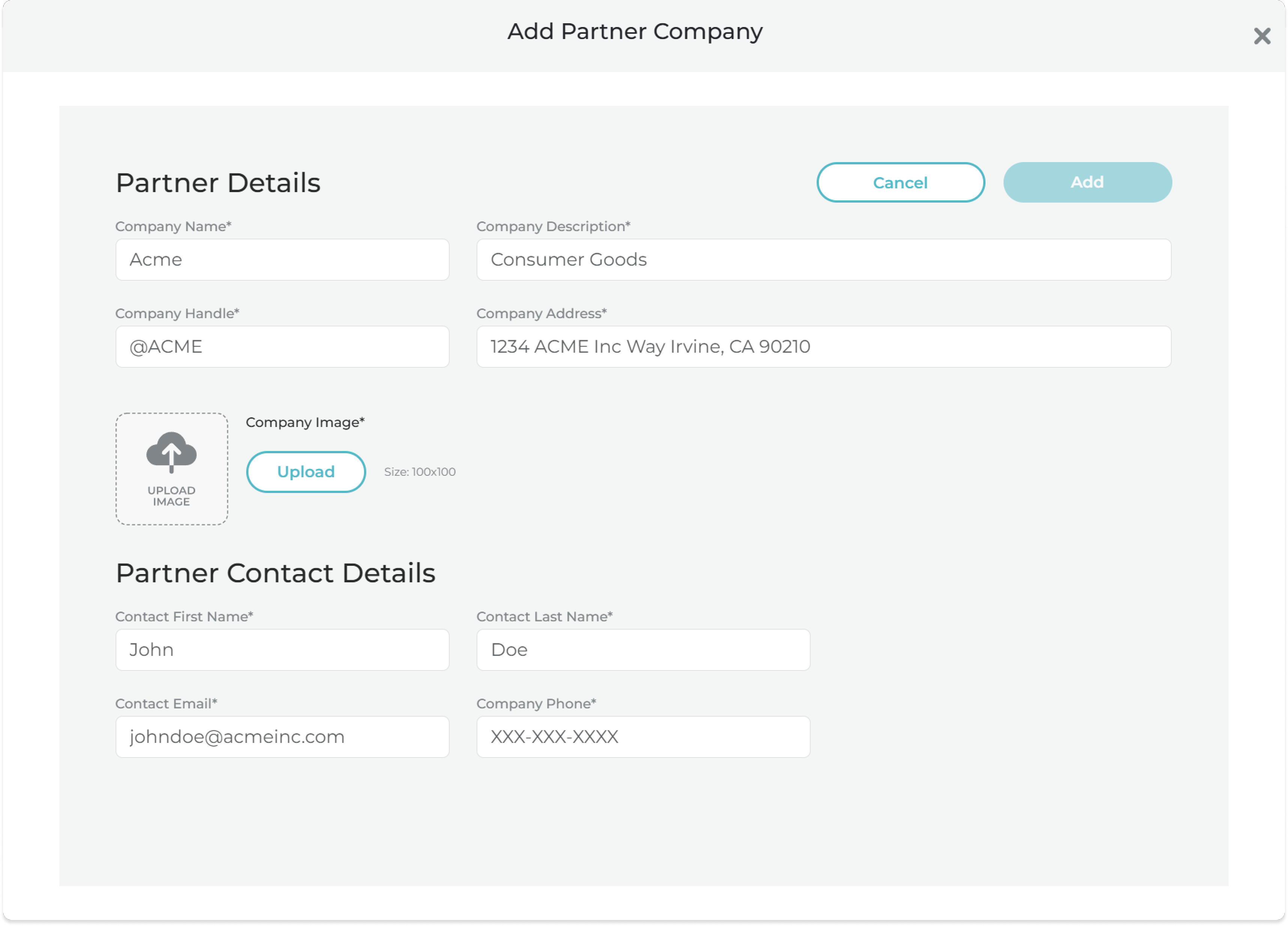
* The Partner/Contractor Details pop-up will open
Partner Details pop-up
* Enter Partner/Contractor Details
> In this tutorial, we will create two partners/contractors, **Awesome XR** and **New Horizon XR**. These partners will be tasked with creating 3D models and immersive application development
* Enter each partner/contractor into the details pop-up
* **Click** "Add" button to save the new partner/contractor
*Expand the following section for Tutorial Partners/Contractors details.*
Partners/Contractors Details
*If you are setting up a MOTAR Instance for your organization, you may input the information for those specific Partners.*
## Awesome XR
{% code title="Company Name: " overflow="wrap" %}
```
AwesomeXR
```
{% endcode %}
{% code title="Company Description: " overflow="wrap" %}
```
An XR Content Creator.
```
{% endcode %}
{% code title="Company Handle: " overflow="wrap" %}
```
@awesomexr
```
{% endcode %}
{% code title="Company Address: " overflow="wrap" %}
```
1969 Artemis Dr., Cape Canaveral, FL 32920
```
{% endcode %}
{% code title="Company Image: " overflow="wrap" %}
```
MOTAR-Tutorial-Files/Company-Image-&-Favicon/AwesomeXR/AwesomeXR-Company-Image.png
```
{% endcode %}
{% code title="Contact First Name: " overflow="wrap" %}
```
Peter
```
{% endcode %}
{% code title="Contact Last Name: " overflow="wrap" %}
```
Lankton
```
{% endcode %}
{% code title="Contact Email: " overflow="wrap" %}
```
p.lankton@awesomexr.com
```
{% endcode %}
{% code title="Contact Phone Number: " overflow="wrap" %}
```
555-555-1234
```
{% endcode %}
***
## New Horizon XR
{% code title="Company Name: " overflow="wrap" %}
```
New Horizon XR
```
{% endcode %}
{% code title="Company Description: " overflow="wrap" %}
```
An XR Content Creator.
```
{% endcode %}
{% code title="Company Handle: " overflow="wrap" %}
```
@newhorizonxr
```
{% endcode %}
{% code title="Company Address: " overflow="wrap" %}
```
23 Jordan Way, Chapel Hill, NC 27514
```
{% endcode %}
{% code title="Company Image: " overflow="wrap" %}
```
MOTAR-Tutorial-Files/Company-Image-&-Favicon/New-Horizon-XR/New-Horizon-XR-Company-Image.png
```
{% endcode %}
{% code title="Contact First Name: " overflow="wrap" %}
```
Andromeda
```
{% endcode %}
{% code title="Contact Last Name: " overflow="wrap" %}
```
Polaris
```
{% endcode %}
{% code title="Contact Email: " overflow="wrap" %}
```
a.polaris@newhorizonxr.com
```
{% endcode %}
{% code title="Contact Phone Number: " overflow="wrap" %}
```
555-555-5678
```
{% endcode %}
Once you have enter **both** Tutorial Partners, your Active Partners screen should match the following image:
Active Partners list (Tutorial Partners added)
{% endstep %}
{% step %}
### Create Studio Groups
> A **Studio Group** functions like a department within a commercial organization. Users assigned to a Studio group are granted the "creator" role, giving them access to the Studio service.
>
> Additionally, listings can be permissioned to specific Studio Groups, ensuring that only members of the appropriate group can access or manage them.
* Navigate to the Studio Groups tab located on the left navigation menu
* **Click** "+ Studio Group"
Active Studio Groups list (currently empty)
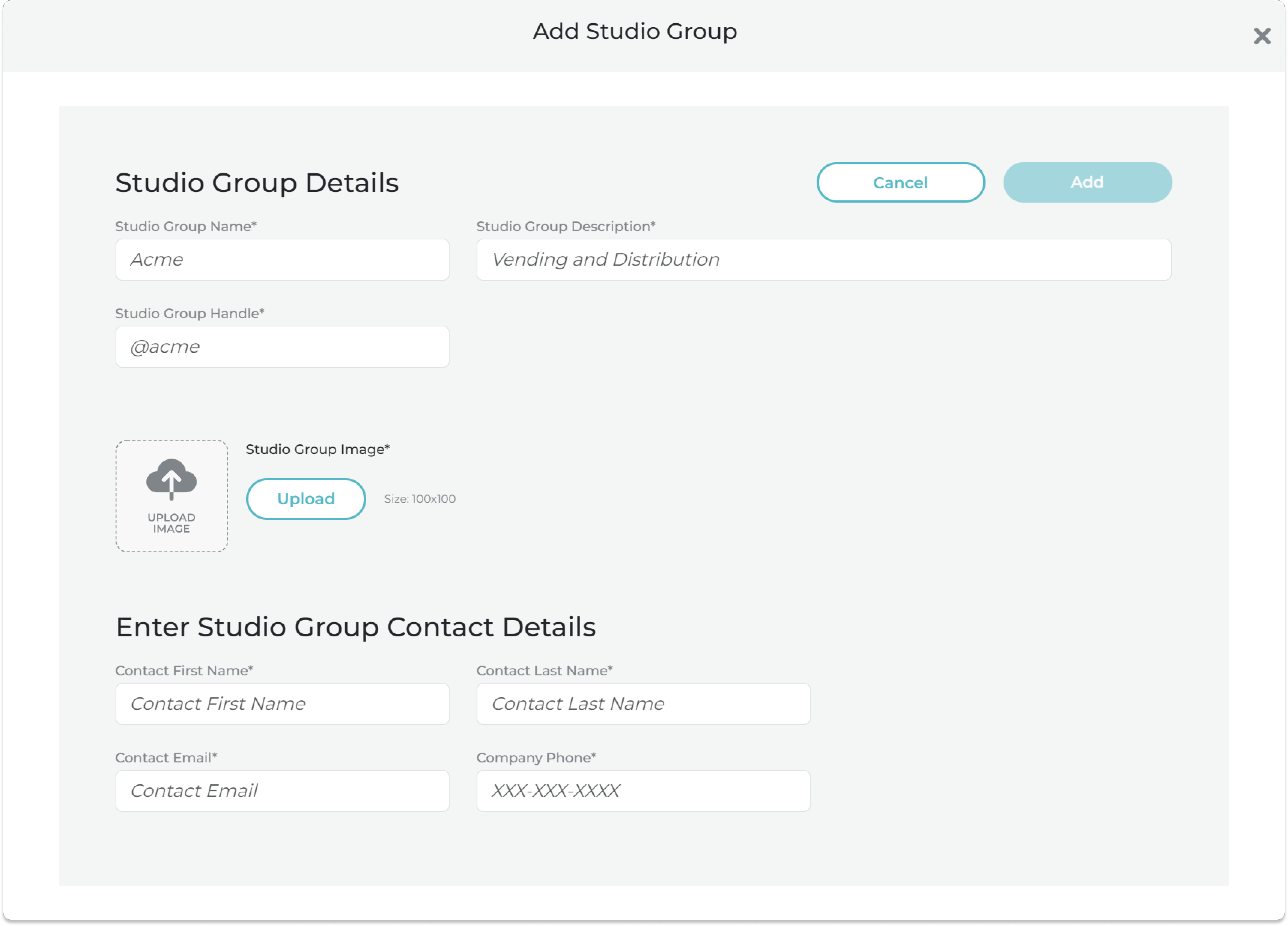
* The Studio Group Details pop-up will open
Adding a Studio Group
* Enter Studio Group details:
> In this tutorial, you will create two Studio Groups: **Awesome XR Studio** and **New Horizon XR Studio**. These represent the functional studios for each partner, and individual users will be assigned to them accordingly.
* Enter each Studio Group into the details pop-up
* **Click** "Add" button to save the new Studio Group
{% hint style="info" %}
Although the Studio Groups created in this tutorial may appear identical to the Partners added in the previous step, it's important to understand that a single Partner can have multiple Studio Groups, similar to departments within a company. For example, **Awesome XR** might include both an **Production Studio Group** and an **Distribution Studio Group**. This structure allows for highly customizable permission settings across different teams or functions.
{% endhint %}
*Expand the following section for* Studio Group *details.*
Studio Group Details
If you are setting up a MOTAR Instance for your organization, input the information for those specific Studio Groups.
### Awesome XR Studio
{% code title="Studio Group Name: " overflow="wrap" %}
```
Awesome XR Studio
```
{% endcode %}
{% code title="Studio Group Description: " overflow="wrap" %}
```
XR content creation team.
```
{% endcode %}
{% code title="Studio Group Image: " overflow="wrap" %}
```
MOTAR-Tutorial-Files/Company-Image-&-Favicon/New-Horizon-XR/New-Horizon-XR-Company-Image.png
```
{% endcode %}
{% code title="Contact First Name: " overflow="wrap" %}
```
Andromeda
```
{% endcode %}
{% code title="Contact Last Name: " overflow="wrap" %}
```
Polaris
```
{% endcode %}
{% code title="Contact Email: " overflow="wrap" %}
```
a.polaris@newhorizonxr.com
```
{% endcode %}
{% code title="Contact Phone Number: " overflow="wrap" %}
```
555-555-5678
```
{% endcode %}
Once you have enter **both** Tutorial Studio Groups, your Active Studio Groups screen should match the following image:
The Studio Groups Tab
{% endstep %}
{% step %}
### Create Users
* Navigate to the Users tab located on the left navigation menu
* **Click** "+ Add New User"
* The User Details pop-up will open
User Details pop-up
The pop-up contains three sections that must be completed in order. You must fill out all required fields in the current section before proceeding to the next. Use the tabs below to view each section:
{% tabs %}
{% tab title="User Details" %}
User Details tab
{% endtab %}
{% tab title="User Role(s)" %}
User Role(s) tab
{% endtab %}
{% tab title="Summary" %}
User Summary tab
{% endtab %}
{% endtabs %}
> MOTAR offers multiple user roles:
>
> * **Standard User**: This role provides access to the platform features allowed by your license. It is selected by default. Standard users can interact with content according to the permissions set by the license.
> * **Auditor**: In addition to standard features, auditors can view, download, use, and distribute Hub listings. This role is ideal for users who need to audit or evaluate assets.
> * **Admin**: Admins have full access to the platform, including all administrative tools and settings.
> * **In this tutorial, you created an admin user during the initial installation setup.**
{% hint style="warning" %}
During this tutorial, we will switch between multiple user accounts. Each user must be assigned a password during creation, and they will be required to set a new password upon their first login.
For convenience, we’ve provided a **temporary password** and a **final password** that can be used across all tutorial users. These are intended for instructional use only, **do not use them for any real or secure accounts**.
{% endhint %}
For this **tutorial**, add the following **four** users via the users tab from the left menu, assign them to their respective **Partner Companies** and provision their respective roles.
User Details
*All other **required** information (Salutation, etc.) can be arbitrary for this tutorial.*
> For convenience, use the following shared passwords for all tutorial users:
>
> * **Temporary Password (used when creating the user profile):**
> * `Welcome12345!Test`
> * **Final Password (used when logging in for the first time, required):**
> * `Zebra$19plane!echo`
> * **Important:** These passwords are for **instructional use only**. Do not use them for securing real accounts.
***
{% hint style="info" %}
User handles are auto-generated during user creation. For this tutorial, each user will have **firstname-lastname** user handles. These will be noted during later steps.
{% endhint %}
## User 1
{% code title="First Name:" overflow="wrap" %}
```
John
```
{% endcode %}
{% code title="Last Name:" overflow="wrap" %}
```
Allen
```
{% endcode %}
{% code title="Primary Email:" overflow="wrap" %}
```
john@awesomexr.com
```
{% endcode %}
{% code title="Title:" overflow="wrap" %}
```
CTO
```
{% endcode %}
{% code title="Partner Company:" overflow="wrap" %}
```
Awesome XR
```
{% endcode %}
{% code title="Country:" overflow="wrap" %}
```
United States
```
{% endcode %}
{% code title="Role:" overflow="wrap" %}
```
Auditor
```
{% endcode %}
{% code title="Temporary Password:" overflow="wrap" %}
```
Welcome12345!Test
```
{% endcode %}
***
***
## User 2
{% code title="First Name:" overflow="wrap" %}
```
Kalvin
```
{% endcode %}
{% code title="Last Name:" overflow="wrap" %}
```
Smith
```
{% endcode %}
{% code title="Primary Email:" overflow="wrap" %}
```
kalvin@awesomexr.com
```
{% endcode %}
{% code title="Title:" overflow="wrap" %}
```
Manager
```
{% endcode %}
{% code title="Partner Company:" overflow="wrap" %}
```
Awesome XR
```
{% endcode %}
{% code title="Country:" overflow="wrap" %}
```
United States
```
{% endcode %}
{% code title="Role:" overflow="wrap" %}
```
Admin
```
{% endcode %}
{% code title="Temporary Password:" overflow="wrap" %}
```
Welcome12345!Test
```
{% endcode %}
***
***
## User 3
{% code title="First Name:" overflow="wrap" %}
```
Adam
```
{% endcode %}
{% code title="Last Name:" overflow="wrap" %}
```
Coder
```
{% endcode %}
{% code title="Primary Email:" overflow="wrap" %}
```
adam@newhorizonxr.com
```
{% endcode %}
{% code title="Title:" overflow="wrap" %}
```
Developer
```
{% endcode %}
{% code title="Partner Company:" overflow="wrap" %}
```
New Horizon XR
```
{% endcode %}
{% code title="Country:" overflow="wrap" %}
```
United States
```
{% endcode %}
{% code title="Role:" overflow="wrap" %}
```
Auditor
```
{% endcode %}
{% code title="Temporary Password:" overflow="wrap" %}
```
Welcome12345!Test
```
{% endcode %}
***
***
## User 4
{% code title="First Name:" overflow="wrap" %}
```
Tiffani
```
{% endcode %}
{% code title="Last Name:" overflow="wrap" %}
```
Bee
```
{% endcode %}
{% code title="Primary Email:" overflow="wrap" %}
```
tiff@newhorizonxr.com
```
{% endcode %}
{% code title="Title:" overflow="wrap" %}
```
Producer
```
{% endcode %}
```
Partner Company:
New Horizon XR
```
{% code title="Country:" overflow="wrap" %}
```
United States
```
{% endcode %}
{% code title="Role:" overflow="wrap" %}
```
Admin
```
{% endcode %}
{% code title="Temporary Password:" overflow="wrap" %}
```
Welcome12345!Test
```
{% endcode %}
***
Once you have enter **all four** Tutorial Users, your Active Users screen should match the following image:
New users added
{% endstep %}
{% step %}
### 3 - Add Users to Studio Groups
Now we want to **add** those **users** into their respective studio groups.
* **Click** on "Studio Groups" in left menu
* **Click** the "Edit pencil" and open **New Horizons XR Studio** group page
* **Click** on the "Users" tab
* **Click** the "+ User" button
* Add Adam and Tiffani to this studio group by **clicking** the "+ Add" button next to their profiles
* **Click** "Done"
Studio Gropu Add Users pop-up
* Repeat these steps for the **Awesome XR** Studio
* *Add **John** and **Kalvin to Awesome XR***
{% endstep %}
{% step %}
### Logout
**Logout** of the platform as the Owning Company Admin by clicking the navigator menu > "Logout"
Logout location
{% endstep %}
{% endstepper %}
Now that you have Partners/Contractors, Studio Groups, and Users, you are ready to add content!
***
## 4 - Add Content to MOTAR Instance
As mentioned in the **Introduction video**, you are working with external partners who are aiding your corporation with **3D models** and **immersive application** development.
This **content** needs to be added to the **MOTAR platform**, so that all company and partner users can access the content to achieve the contract's objectives.
In this next step, you will first add the MOTAR Tutorial Video that you watched at the start of this tutorial to the MOTAR Instance, so that it can be referenced by company and partner users throughout the contract.
Following that, you will add various 3D models that have been created by the Awesome XR Partner Organization, that will be used to create the application training users how to fly a UFO.
***
* Login as **Kalvin Smith** of the AwesomeXR
MOTAR Login screen
> Since this will be your first time logging in as this user, you will be required to change the password. Here are the logins:
>
> * **Username**:
> * `kalvin-smith`
> * **Temporary Password (used when creating the user profile):**
> * `Welcome12345!Test`
> * **Final Password (used when logging in for the first time, required):**
> * `Zebra$19plane!echo`
* **Navigate** to the Studio service
Studio page
{% hint style="warning" %}
### The following steps may require you to log in and out of various users.
*You cannot login as multiple users in a single browser session!*
\
*If you would like to manage multiple users while testing MOTAR, you can open a new "incognito" tab and login as the second user **or** use a different browser for the second user.*
{% endhint %}
### **Create a Video Listing**
Video Listing Guide
Using the video downloaded from the [Broken mention](broken://pages/4ZrWu216oQkhsbq4nR9n), create a new video asset.
Video Listing Details
* **Click** on the "Create Video" button to open the new listing modal
* **Modal: What Type of Listing are you creating?**
* Select **New HUB Listing**
Use the following information for the video listing details:
* **Asset File Path:**
* `MOTAR-Tutorial-Files/Listings/Video/MOTAR-Ghost-Tutorial-Video-v2.mp4`
* **Listing Name:**
* *MOTAR Ghost Tutorial Video*
* **Listing Description:**
* *This tutorial will guide you through the MOTAR Ghost installation on your laptop or in your preferred cloud environment.*
* **Thumbnail Image Path:**
* `MOTAR-Tutorial-Files/Listings/App/learn_to_fly_ufo_icon.png`
* **Click** the "Create" button
* **Settings:**
* Select **Standard**
* **Permission Wizard:**
* **Click** the "plus icon" in the **Public Modify** section to grant full rights to the user
* **Check** the box:
* *“I certify that the information above is correct and ready to share”*
* **Click** "Publish"
* When prompted, choose **"Keep the current permissions"**
{% hint style="success" %}
Now that you have your first asset, return to the Hub and check it out!
{% endhint %}
* Navigate to the Hub Service
Hub discover page
* Watch your uploaded video
Video listing Hub details
* Return to the Studio service
Studio service page
### Create 3D Model Listings
Power Cell Model Listings Guide
*For this step you will create three versions of a Power Cell. This will teach you about the Digital Thread and Remixes!*
Use the details below to create three 3D model listings.
#### Blue UFO Power Cell - V1.0
3D Model Listing Details
* Click on the **Create Model** icon
* **What Type of Listing are you creating?**
* Select **New HUB Listing**
**Upload**
* **Asset File Path:**
* `MOTAR-Tutorial-Files/Listings/3D-Model/Powercell/1-Blue-Power-Cell/UFO_Powercell_1.glb`
**Info**
* **Listing Name:**
* *Blue UFO Power Cell*
* **Listing Description:**
* *A Power Cell found near the crashed UFO found in the Outer Banks of North Carolina. This is believed to be the energy source of the UFO. Observations note that this Power Cell glows blue.*
* **Thumbnail Image Path:**
* `MOTAR-Tutorial-Files/Listings/3D-Model/Powercell/1-Blue-Power-Cell/UFO_Powercell_1.png`
* **3D Preview File:** (Optional: REQUIRED for viewing when [MOTAR Holodeck](/motar-core-services/intro-to-core-services/devices/motar-holodeck.md))
* `MOTAR-Ghst-Tutorial-Files/Listings/3D-Model/Powercell/1-Blue-Power-Cell/UFO_Powercell_1.glb`
* **Click** "Create"
**Settings**
* **Polycount:**
* *10,000 – 100,000*
* **Textures Included:** Yes
* **Animations Included:** No
* **Click** "Save"
**Permission Wizard:**
* **Click** the "plus" icon in the **Partners Modify** section
* Add **Cosmic Horizon** and their partners to grant exclusive rights to this listing
* **Check** the box:
* *“I certify that the information above is correct and ready to share”*
* **Click** "Publish"
* Select **Keep Current Permissions**
***
#### Yellow UFO Power Cell - V1.1
3D Model child remix
* **Click** on the "Create Model" icon to open the new listing modal
* Modal: What Type of Listing are you creating?
* Select **Add a new Version to my own listing**
* What Type of Version are you adding?
* Select **Add a Remix Version**
* Select the asset to make a version of:
* Choose ***Blue Power Cell** V1.0*
* Select Where you would like your new Version to Go:
* Select **Add a Child Version**
**Upload**
* **Asset File Path:**
* `MOTAR-Tutorial-Files/Listings/3D-Model/Powercell/1-Yellow-Power-Cell/UFO_Powercell_2.glb`
**Info**
* **Listing Name:**
* Yellow UFO Power Cell
* **Listing Description:**
* Found near the crash site, this Power Cell is believed to be the energy source for the crashed UFO found in the Tahoe National Forest. Dissimilar to the original Power Cell, this Power Cell glows Yellow.
* **Thumbnail Image Path:**
* `MOTAR-Tutorial-Files/Listings/3D-Model/Powercell/1-Yellow-Power-Cell/UFO_Powercell_2.png`
* **3D Preview File:** (Optional: REQUIRED for viewing when [MOTAR Holodeck](/motar-core-services/intro-to-core-services/devices/motar-holodeck.md))
* `MOTAR-Tutorial-Files/Listings/3D-Model/Powercell/2-Yellow-Power-Cell/UFO_Powercell_2.glb`
* Click **Create**
**Settings**
* **Polycount:**
* *10,000 – 100,000*
* **Textures Included:** Yes
* **Animations Included:** No
* **Click** "Save"
**Permission Wizard:**
* **Click** the "plus icon" in the **Partners Modify** section
* Add **Cosmic Horizon** and their partners to grant exclusive rights to this listing
* **Check** the box:
* *“I certify that the information above is correct and ready to share”*
* **Click** Publish"
* Select **Keep Current Permissions**
***
#### Purple UFO Power Cell - V2.0
* **Click** on the "Create Model" icon to open the new listing. modal
* Modal: What Type of Listing are you creating?
* Select **Add a new Version to my own listing**
* What Type of Version are you adding?
* Select **Add a Remix Version**
* Select the asset to make a version of:
* Choose ***Blue Power Cell** V1.0*
* Select Where you would like your new Version to Go:
* Select **Add a Parent Version**
**Upload**
* **Asset File Path:**
* `MOTAR-Tutorial-Files/Listings/3D-Model/Powercell/1-Purple-Power-Cell/UFO_Powercell_3.glb`
**Info**
* **Listing Name:**
* Purple UFO Power Cell
* **Listing Description:**
* Power Cell found near the UFO crash site in the Appalachian Mountains. Unlike the other two Power Cells, this one has a purple aura.
* **Thumbnail Image Path:**
* `MOTAR-Tutorial-Files/Listings/3D-Model/Powercell/1-Purple-Power-Cell/UFO_Powercell_3.png`
* **3D Preview File:** (Optional: REQUIRED for viewing when [MOTAR Holodeck](/motar-core-services/intro-to-core-services/devices/motar-holodeck.md))
* `MOTAR-Tutorial-Files/Listings/3D-Model/Powercell/2-Purple-Power-Cell/UFO_Powercell_3.glb`
* **Click** "Create"
**Settings**
* **Polycount:**
* *10,000 – 100,000*
* **Textures Included:** Yes
* **Animations Included:** No
* **Click** "Save"
**Permission Wizard:**
* **Click** the "plus" icon in the **Partners Modify** section
* Add **Cosmic Horizon** and their partners to grant exclusive rights to this listing
* **Check** the box:
* *“I certify that the information above is correct and ready to share”*
* **Click** "Publish"
* Select **Keep Current Permissions**
Flashlight Model Listings Guide
Now you will create two versions of a Flashlight listing. *(Version 1.0 without texture and Version 1.1 Remix with texture).*
#### Untextured Flashlight
Flashlight listing
* **Click** on the "Create Model" icon to open the new listing modal
* **What Type of Listing are you creating?**
* Select **New HUB Listing**
**Upload**
* **Asset File Path:**
* `MOTAR Tutorial Files > Listings > 3D Model > Flashlight > 1. Untextured Flashlight > Dynepic_Flashlight_1.gltf`
**Info**
* **Listing Name:**
* MOTAR Demo Flashlight
* **Listing Description:**
* A 3D Model of a Flashlight*.*
* **Thumbnail Image Path:**
* `MOTAR Tutorial Files > Listings > 3D Model > Flashlight > 1. Untextured Flashlight > Dynepic_Flashlight_1_ThumbnailImage_1.png`
* Click **Create**
**Settings**
* **Polycount:**
* *1,000 – 10,000*
* **Textures Included:** No
* **Animations Included:** No
* **Click** "Save"
**Permission Wizard:**
* **Click** the "plus" icon in the **Partners Modify** section
* Add **Cosmic Horizon** and their partners to grant exclusive rights to this listing
* **Check** the box:
* *“I certify that the information above is correct and ready to share”*
* **Click** "Publish"
* Select **Keep Current Permissions**
***
#### Textured Flashlight
Textured Flashlight
* What Type of Listing are you creating?
* Select **Add a new Version to my own listing**
* What Type of Version are you adding?
* Select **Add a Remix Version**
* Select the asset to make a version of:
* Choose **MOTAR Demo Flashlight**
* Select Where you would like your new Version to Go:
* Select **Add a Child Version**
**Upload**
* **Asset File Path:**
* `MOTAR-Tutorial-Files/Listings/3D-Model/Flashlight/2-Textured-Flashlight/Dynepic_Flashlight_2.gltf`
**Info**
* **Listing Name:**
* MOTAR Demo Flashlight
* **Listing Description:**
* A 3D Model of a Flashlight*.*
* **Thumbnail Image Path:**
* `MOTAR-Tutorial-Files/Listings/3D-Model/Flashlight/2-Textured-Flashlight/Dynepic_Flashlight_2_ThumbnailImage_1.png`
* **Click** "Create"
**Settings**
* **Polycount:**
* *1,000 – 10,000*
* **Textures Included:** Yes
* **Animations Included:** No
* Click **Save**
**Permission Wizard:**
* **Click** the "plus" icon in the **Partners Modify** section
* Add **Cosmic Horizon** and their partners to grant exclusive rights to this listing
* **Check** the box:
* *“I certify that the information above is correct and ready to share”*
* **Click** "Publish"
* Select **Keep Current Permissions**
UFO Control Panel Model Listing Guide
*Now you will create a model listing for the UFO Control Panel. This model has **animations***!
#### UFO Control Panel
UFO Control Panel listing
* **Click** on the "Create Mode"l icon to open the new listing modal
* **Modal: What Type of Listing are you creating?**
* Select **New HUB Listing**
#### Upload
* **Asset File Path:**
* `MOTAR-Tutorial-Files/Listings/3D-Model/UFO-Control-Panel/UFO_Control_Panel.glb`
#### Info
* **Listing Name:**
* *UFO Control Panel*
* **Listing Description:**
* *A digital twin of the control panel from inside the crashed UFO found in the Outer Banks of North Carolina.*
* **Thumbnail Image Path:**
* `MOTAR-Tutorial-Files/Listings/3D-Model/UFO-Control-Panel/UFO_Control_Panel_1.png`
* **3D Preview File (Optional** but REQUIRED when [MOTAR Holodeck](/motar-core-services/intro-to-core-services/devices/motar-holodeck.md)**):**
* `MOTAR-Tutorial-Files/Listings/3D-Model/UFO-Control-Panel/UFO_Control_Panel.glb`
* **Click** "Create"
#### Settings
* **Polycount:**\
*10,000 – 100,000*
* **Textures Included:** Yes
* **Animations Included:** Yes
* **Click** "Save"
#### Permission Wizard
* **Click** the "plus" icon in the **Partners Modify** section
* Add **Cosmic Horizon** and their partners to grant exclusive rights to this listing
* **Check** the box:\
*“I certify that the information above is correct and ready to share”*
* **Click** "Publish"
* When prompted, select **Keep Current Permissions**
> Now that you have several listings on Hub, we will log out of the current user.
* Log out of Kalvin Smith
Logout location
***
### Create an App Listing
The **assets** you uploaded to MOTAR in the previous step have been leveraged by the New Horizon XR Team to create an XR application teaching a user how to Fly the UFOs that have been found across the world.
This application needs to be **uploaded** to MOTAR, so that it can be securely distributed to members of the company that will fly the UFOs back to the laboratory for further research and analysis.
* Log in as **Tiffani Bee** of New Horizon XR
> Since this will be your first time logging in as this user, you will be required to change the password. Here are the logins:
>
> * **Username**:
> * `tiffani-bee`
> * **Temporary Password (used when creating the user profile):**
> * `Welcome12345!Test`
> * **Final Password (used when logging in for the first time, required):**
> * `Zebra$19plane!echo`
App Listing Guide
* From the Studio service, **click** the "App" icon
Create App button
* Select "New Hub Listing"
Listing Type selection
* Enter the required fields (listed below)
Required Fields
* Once the required fields have been entered, the "Create" button will enable
* **Click** "Create"
Your listing will now be created and the Info tab will automatically open.
Enter the following details and download the listed files for this listing:
**App Listing Details**
* Listing Name
* **Learn to Fly UFO**
* Listing Description
* **An alien ship has crashed in a barn. Can you find all the power cells and fly away?**
* Thumbnail
* **MOTAR Tutorial Files > Listings > App > learn\_to\_fly\_ufo\_icon.png**
* Sample Images
* **MOTAR Tutorial Files > Listings > App > learn\_to\_fly\_ufo\_preview\_01.png**
* **MOTAR Tutorial Files > Listings > App > learn\_to\_fly\_ufo\_preview\_02.png**
* **MOTAR Tutorial Files > Listings > App > learn\_to\_fly\_ufo\_preview\_03.png**
* **MOTAR Tutorial Files > Listings > App > learn\_to\_fly\_ufo\_preview\_04.png**
* **MOTAR Tutorial Files > Listings > App > learn\_to\_fly\_ufo\_preview\_05.png**
* Does your App run in a web browser?
* **No**
* Settings
* **n/a**
* Distribution
* Listing File Path (download the pre-compiled application before starting)
* **MOTAR Tutorial Files > Listings > App > learn\_to\_fly\_ufo\_demo.apk**
* **Meta Quest 3**
* **learn\_to\_fly\_ufo.apk**
* **Package Name:** com.Dynepic.LearntoFlyUFO
* SDKs
* **none**
* Permissions
* **Click on the plus in the "Cosmic Horizon Modify" section to only give members of Cosmic Horizon rights to this listing**
* **Check the “I certify that the information above is correct and ready to share” box**
* Click **"Submit App for Review"**
{% hint style="info" %}
Now that the app as been created, we will go to **Admin** and approve the app. For this tutorial, we will stay logged in as Tiffani. In a normal workflow, app creation and approval would not be the same person.
{% endhint %}
### Approve the App
* Use the **TopNav** menu on the far **left** to navigate to the **Admin** service
* From the left menu, navigate to **App Review**
* Locate the app created in the previous step
* **Check** the “I have reviewed the app….” box and **approve** the app
* Use the **TopNav** menu on the far left to navigate to the **Studio service**
* From the studio group service, **find your app** and **click** the "Edit pencil", then **click** on "Publish"
* Keep **Current** Permissions Settings
* **Navigate** to the Hub service and see app in Production
* **Log out**
> ## Congratulations!
>
> You've successfully learned how to add listings to your instance, approve apps, and create Users, Studio Groups, and Partners. You've covered all the foundational steps needed to manage your MOTAR environment.
>
> The next section moves into more intermediate-to-advanced territory: setting up VR headsets and installing applications on them using our companion app. If you don't have access to a VR headset or prefer to pause here, feel free to continue exploring your MOTAR instance by logging in as different users and experimenting with what you've built so far.
***
## Optional Steps
Connecting an XR Headset to your Instance
***COMING SOON!***
Connecting your XR Headset to your local MOTAR instance is and advanced setup requiring updates to both your network router and your headset's network configuration.
This process may be different for every user can cannot be completly covered in an online guide.
For more control and reliability, it is recommended you install MOTAR using the [Advanced Deployment Guide](/welcome/getting-started/production-installation/advanced-deployment-guide.md) for cloud hosting and connect to your instance via a domain. \
This would allow MOTAR 3D and App connections without network modifications.
Install MOTAR 3D to VR Headsets
**MOTAR 3D** is an immersive XR companion application that allows you to quickly discover, install, and launch immersive content found on the Hub and begin collaborative learning through a virtual environment on any XR device, no matter where your team members are located.
MOTAR 3D is compatible with the following devices.
* Meta Quest 2
* Meta Quest 3
* Meta Quest Pro
* Vive Focus 3
It even works seamlessly with **Meta Quest for Business**.
Instructions for downloading and installing MOTAR 3D can be found [HERE](/additioinal-features/motar-3d.md)
{% hint style="warning" %}
Side loading applications to Meta Quest devices requires a Meta Developer account and for the device to be in "Devleoper Mode".
{% endhint %}
Install the App to the Headset
Your pre-existing app is now **ready for distribution**. Loading apps onto a **VR** device depends on your current organization setup.
Whether your ogranization uses **Meta Quest for Business**, Meta Quest Devloper Hub, or sideloading, learn how by following the app installtion guide: [MOTAR 3D](/additioinal-features/motar-3d.md#installing-applications-on-a-vr-device)
Launch an Application
You can **launch** your application in two ways.
From within **MOTAR 3D**, by clicking "Launch" on the app listing
OR
**Launch** directly from Hub!
* Log into Hub.
* Locate the application and open the Hub listing Page.
* Click “Launch with MOTAR 3D” in the top right corner.
If MOTAR 3D is **installed** on the Headset, click “Continue on Headset.”
**Follow the instructions** on the MOTAR Devices page to sync the headset.
* Launch MOTAR 3D.
* Sync the device.
{% hint style="warning" %}
Launcing applications via web or MOTAR 3D on Meta Quest devices requires the application be installed prior to launching.
{% endhint %}
Build an XR Application Using the MOTAR SDK for Unity
Ready to put your development skills to the test? Dive into our complete Unity XR sample project and see how easy it is to create immersive experiences using the MOTAR SDK for Unity. In this guide, you'll learn how to:
* Set up the MOTAR SDK in a Unity project
* Integrate the MOTAR XR Rig into your scene
* Compile and prepare your application for hosting on your MOTAR instance
Whether you're exploring XR for the first time or looking to extend your MOTAR experience, this project is a great place to start!
👉 [**Get Started with the Learn to Fly UFO Complete Project**](broken://pages/eP6dJt0EMPCMrJFh5eM5)
---
# Agent Instructions
This documentation is published with GitBook. GitBook is the documentation platform designed so that both humans and AI agents can read, navigate, and reason over technical content effectively. Learn more at gitbook.com.
## Querying This Documentation
If you need additional information that is not directly available in this page, you can query the documentation dynamically by asking a question.
Perform an HTTP GET request on the current page URL with the `ask` query parameter, and the optional `goal` query parameter:
```
GET https://docs.motar.com/welcome/motar-tutorials.md?ask=&goal=
```
`ask` is the immediate question: it should be specific, self-contained, and written in natural language.
`goal` is optional and describes the broader end goal you are ultimately trying to accomplish on behalf of the user. GitBook uses it to tailor the answer towards what is most useful for that goal.
The response will contain a direct answer to the question and relevant excerpts and sources from the documentation.
Use this mechanism when the answer is not explicitly present in the current page, you need clarification or additional context, or you want to retrieve related documentation sections.