# Set Up the Scenes

Setting Up the Scenes

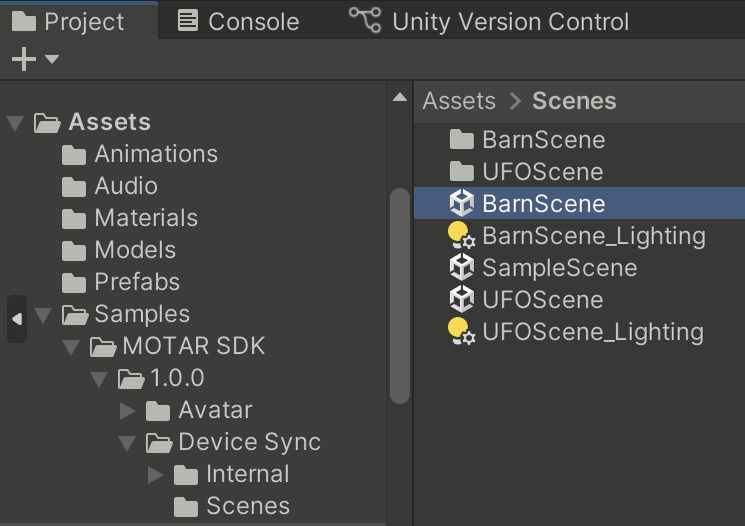
1. Navigate to `Assets -> Samples -> MOTAR SDK -> 1.0.0 -> Learn to Fly UFO (URP Only) -> Scenes`.
2. Open **BarnScene**.

<figure><img src="/files/ZyNTAUu66J3gxmA70EZx" alt="" width="373"><figcaption></figcaption></figure>

#### Adding the Player

* Navigate to `Assets -> Samples -> MOTAR SDK -> 1.0.0 -> Avatar -> Resources`.

<figure><img src="/files/3M7ijeHdaixarRDxvbyX" alt="" width="375"><figcaption></figcaption></figure>

* Drag **MOTAR\_Player** prefab into the **Hierarchy** window.

<figure><img src="/files/UY07n61oNlGtxxZjZTzY" alt="" width="323"><figcaption></figcaption></figure>

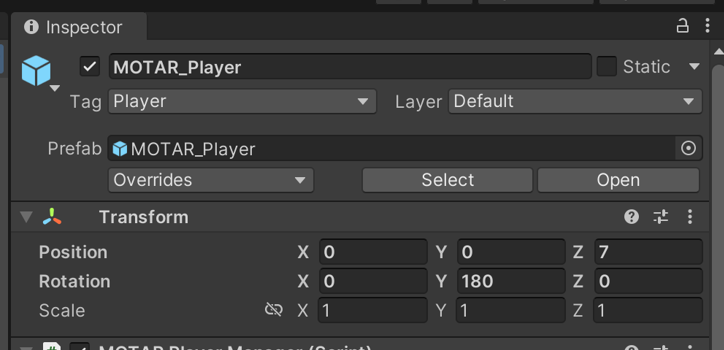
* Set its **Position** to `(0, 0, 7)` and **Rotation** to `(0, 180, 0)`.

<figure><img src="/files/cSfsI8NIzk3PgGZpIEFX" alt="" width="362"><figcaption></figcaption></figure>

#### Changing Movement Controls

* Locate the **Left Controller** inside **MOTAR\_Player** (`MOTAR_Player -> Camera Offset`).&#x20;

<figure><img src="/files/cQVEfGai8iVvtHJ7b9OK" alt="" width="336"><figcaption></figcaption></figure>

* Find the component **MOTAR Controller Manager**. In the **Inspector** window
* Uncheck **Smooth Motion** to enable teleport movement.

<figure><img src="/files/t3sDMel5Oim9oc8zrr6P" alt="" width="375"><figcaption></figcaption></figure>

#### Linking Player to UFO Animation

* In **Hierarchy**, find **UFO\_1** inside **UFO\_Assets**.

<figure><img src="/files/PZk3ksxcXZefTBoBdZK1" alt="" width="375"><figcaption></figcaption></figure>

* Locate the **UFO Event Manager** component in the **Inspector** window

<figure><img src="/files/pL23qbLgK3fU4VMIZJ0F" alt="" width="336"><figcaption></figcaption></figure>

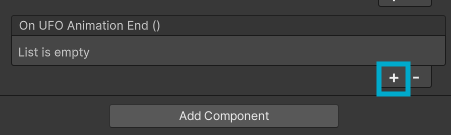
* Click **+** under **On UFO Animation End ()**.

<figure><img src="/files/UnLV47YbjAbQEhVB5poM" alt="" width="338"><figcaption></figcaption></figure>

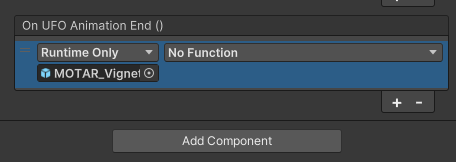
* Drag **MOTAR\_Vignette\_1** from **MOTAR\_Player -> Camera Offset -> Main Camera** into the new event.

<figure><img src="/files/xkdNsyQXV1EKfOwSGAtO" alt="" width="360"><figcaption><p>The Player prefab</p></figcaption></figure>

<figure><img src="/files/Jh4g2jXLlzhHAdJ4bBWh" alt="" width="342"><figcaption><p>Prefab added to the  UFO Animation End ()</p></figcaption></figure>

* From the "No Function" dropdown, select **MOTARVignette -> FadeOut()**.

<figure><img src="/files/KUt951XrdW3LoMXYOwzH" alt="" width="390"><figcaption><p>Select the function through the popout menus</p></figcaption></figure>

<figure><img src="/files/0n5q0z3mmW2kFNDZIbnf" alt=""><figcaption><p>FadeOut function added to the UFO Animation End ()</p></figcaption></figure>

* Navigate to **MOTAR\_Vignette\_1,**&#x20;
  * Alternatively, click **Add Component**
  * Type **MOTARLoadScene**&#x20;
*

```
<figure><img src="/files/exFGhaTJ4hl1ERxLkXfb" alt=""><figcaption></figcaption></figure>
```

* Press **Enter** on your keyboard to add the script.
* Set **Scene Index** to **2** in **MOTARLoadScene**.

<figure><img src="/files/LgAwfPvtyDrcKfH2eAUB" alt=""><figcaption></figcaption></figure>

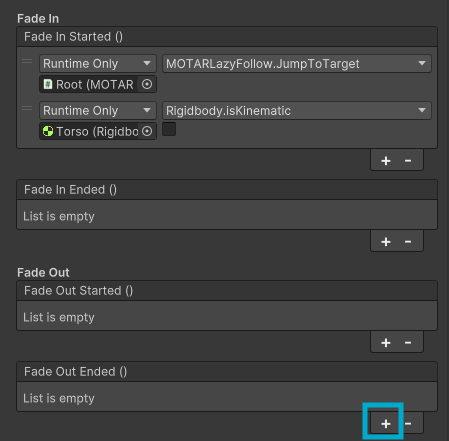
* Under **MOTAR Vignette**, click **+** under **Fade Out Ended ()**.

<figure><img src="/files/FOgCml1Dx6SxZWdQ62D2" alt=""><figcaption></figcaption></figure>

* Drag **MOTAR\_Vignette\_1** into the event and select **MOTARLoadScene -> LoadScene()**.

<figure><img src="/files/B5KupQ5Ah9v0AWuLlUda" alt=""><figcaption></figcaption></figure>

* **Save** the scene.

#### Copying Player to the Final Scene

* In **BarnScene**, select **MOTAR\_Player** and copy it (`Edit -> Copy`).
* Open `Assets -> Samples -> MOTAR SDK -> 1.0.0 -> Learn to Fly UFO (URP Only) -> Scenes -> UFOScene`.
* Paste **MOTAR\_Player** into the **Hierarchy**.
* Set its **Position** to `(0, 0, 0)` and **Rotation** to `(0, 0, 0)`.

<figure><img src="/files/VmcK0Nq8JxAW0eXRYS95" alt=""><figcaption></figcaption></figure>

#### Fading Player in the Final Scene

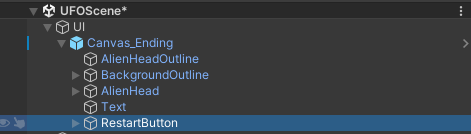
* In **Hierarchy**, find **RestartButton** inside **UI -> Canvas\_Ending**.

<figure><img src="/files/ddqhsihStATNHEJP8OUj" alt=""><figcaption></figcaption></figure>

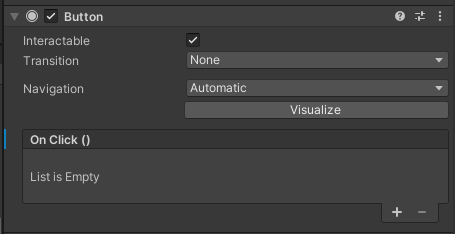
* Locate the **Button** component.

<figure><img src="/files/R3mIPCsrNnGA0MDxbY2k" alt=""><figcaption></figcaption></figure>

* Click **+** under **On Click ()**.

<figure><img src="/files/yjw0lZYvNTYoxzZQXU7g" alt=""><figcaption></figcaption></figure>

* Drag **MOTAR\_Vignette\_1** from **MOTAR\_Player -> Camera Offset -> Main Camera** into the event.
* Select **MOTARVignette -> FadeOut()**.

<figure><img src="/files/pIYUWwDQx2jTo7RrG9b2" alt=""><figcaption></figcaption></figure>

* Locate **MOTARLoadScene** in **MOTAR\_Vignette\_1**.
* Change **Scene Index** to **1**.

<figure><img src="/files/1y6lbLn6nGVjMi6g4S5t" alt=""><figcaption></figcaption></figure>

* **Save** the scene.

***

###


---

# Agent Instructions: Querying This Documentation

If you need additional information that is not directly available in this page, you can query the documentation dynamically by asking a question.

Perform an HTTP GET request on the current page URL with the `ask` query parameter:

```
GET https://docs.motar.com/welcome/motar-tutorials/learn-to-fly-ufo-xr-app-build-tutorial/set-up-the-scenes.md?ask=<question>
```

The question should be specific, self-contained, and written in natural language.
The response will contain a direct answer to the question and relevant excerpts and sources from the documentation.

Use this mechanism when the answer is not explicitly present in the current page, you need clarification or additional context, or you want to retrieve related documentation sections.